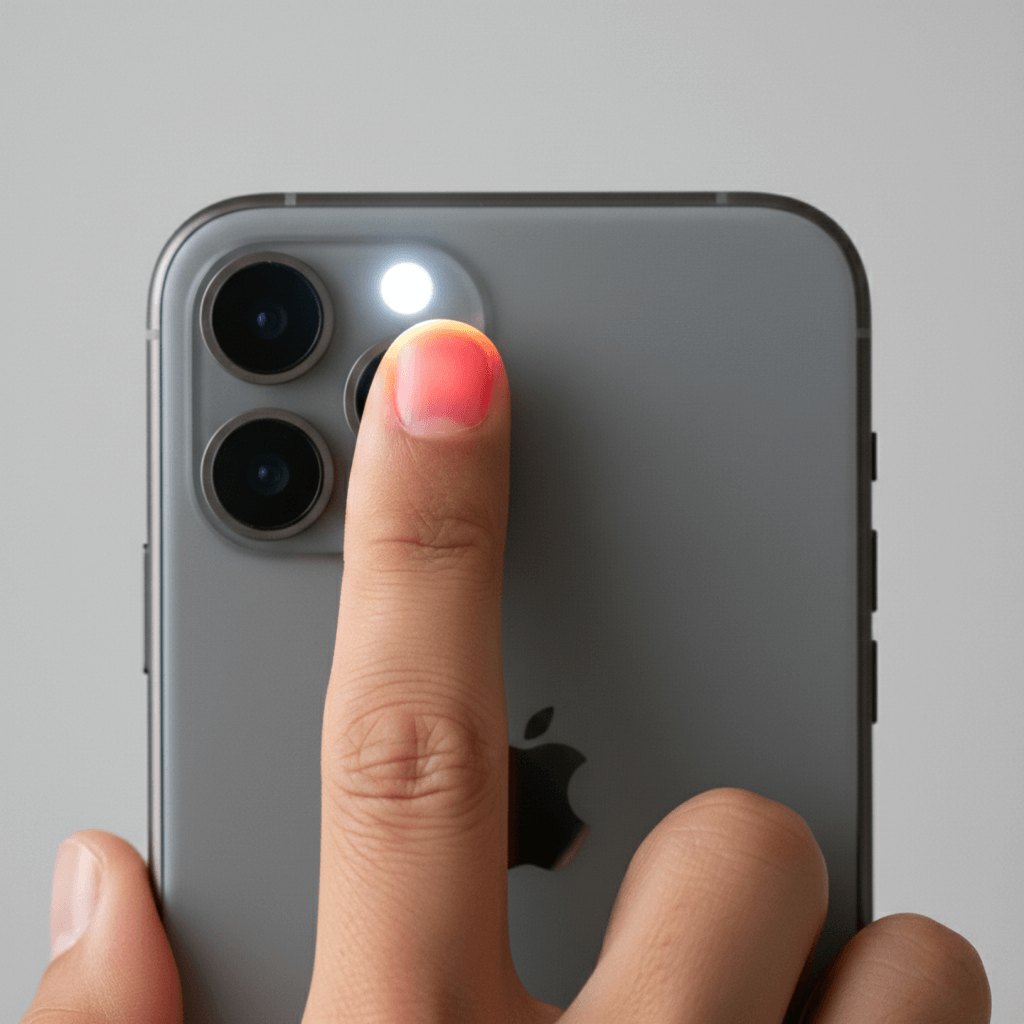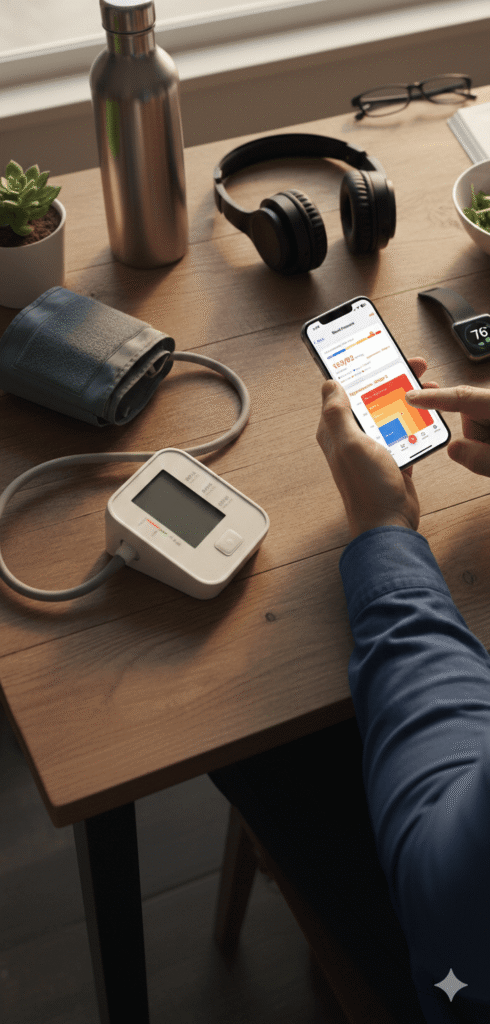

Keeping all your health data in one place makes it easier to see the complete picture of your wellness. By connecting Pul AI to Apple Health, your heart rate measurements, blood pressure readings, and other vital signs automatically sync to Apple’s centralized health platform – giving you a unified view of your health data across all your apps and devices.
In this guide, we’ll walk you through everything you need to know about integrating Pul AI with Apple Health.
Why Sync Pul AI with Apple Health?
Apple Health acts as a central hub for all your health and fitness data on your iPhone. Connecting Pul AI offers several benefits:
Centralized data: View measurements from Pul AI alongside data from your Apple Watch, other health apps, and medical records in one place.
Better insights: Apple Health can combine data from multiple sources to provide more comprehensive health trends and summaries.
Easy sharing: Share your complete health history with healthcare providers directly from the Health app.
Data backup: Your health data is securely backed up through iCloud when enabled.
Third-party integration: Other apps you use can access your Pul AI measurements through Apple Health (with your permission).
What Data Does Pul AI Sync?
When connected, Pul AI can share the following measurements with Apple Health:
- Heart rate (BPM)
- Heart rate variability (HRV)
- Blood pressure (systolic and diastolic)
- Blood oxygen saturation (SpO2)
- Blood glucose levels
You have full control over which data types Pul AI can read from and write to Apple Health.
How to Connect Pul AI to Apple Health
Setting up the connection takes just a few moments. Here’s how to do it:
Step 1: Open Pul AI Settings
- Launch Pul AI on your iPhone
- Tap the settings or profile icon
- Look for “Apple Health” or “Health Integration” option
Step 2: Enable Apple Health Sync
- Tap on the Apple Health integration option
- Toggle the switch to enable syncing
- The Apple Health permissions screen will appear
Step 3: Grant Permissions
When the Health Access screen appears:
- Review the data types Pul AI is requesting to read and write
- Toggle on the categories you want to sync
- Tap “Allow” to confirm your choices
You can enable all categories for the most comprehensive integration, or select only specific data types based on your preferences.
Step 4: Verify the Connection
To confirm everything is working:
- Take a measurement in Pul AI (such as heart rate)
- Open the Apple Health app
- Navigate to Browse > Heart > Heart Rate
- Check that your Pul AI measurement appears in the data
Managing Apple Health Permissions
You can adjust what data Pul AI can access at any time through Apple Health settings.
Viewing Current Permissions
- Open the Health app on your iPhone
- Tap your profile picture in the top right
- Scroll down and tap “Apps”
- Find and tap “Pul AI”
- Review which data types are enabled
Changing Permissions
From the same screen, you can:
- Toggle individual data types on or off
- See when Pul AI last accessed your health data
- Remove all access by disabling all toggles
Removing Pul AI Access Completely
If you want to disconnect Pul AI from Apple Health entirely:
- Go to Health app > Profile > Apps > Pul AI
- Turn off all data permissions
- Optionally, delete historical data that Pul AI has written
Troubleshooting Common Issues
Data Not Syncing
If your measurements aren’t appearing in Apple Health:
- Check permissions: Verify Pul AI has write access in Health settings
- Restart the app: Close Pul AI completely and reopen it
- Check your iOS version: Ensure you’re running a supported iOS version
- Reinstall if needed: Delete and reinstall Pul AI, then reconnect to Health
Duplicate Data
Seeing double entries in Apple Health? This can happen if multiple apps record the same metric. To manage this:
- Open Health app
- Go to Browse and select the data type (e.g., Heart Rate)
- Scroll down and tap “Data Sources & Access”
- Arrange the priority order or disable sources you don’t want
Permissions Screen Not Appearing
If the Apple Health permissions prompt doesn’t show up:
- Go to iPhone Settings > Health > Data Access & Devices
- Find Pul AI in the list
- Manually enable the permissions you want
Privacy and Security
Your health data privacy is protected at multiple levels:
On-device processing: Pul AI processes measurements locally on your iPhone.
Apple’s encryption: Data synced to Apple Health is encrypted and protected by your device passcode and Face ID/Touch ID.
Your control: You decide exactly what data to share and can revoke access anytime.
No cloud requirement: The sync happens directly between Pul AI and Apple Health on your device – no external servers involved.
Tips for Getting the Most from the Integration
Enable all relevant categories: The more data you sync, the more complete your health picture becomes in Apple Health.
Check Health summaries: Apple Health creates daily, weekly, and monthly summaries that now include your Pul AI data.
Use Health sharing: Share your health data with family members or caregivers through Apple’s Health Sharing feature.
Export your data: Need a complete record? Export all your health data from Apple Health as a comprehensive file.
Set up Medical ID: Add emergency contacts and medical information that first responders can access from your lock screen.
Frequently Asked Questions
Does syncing use battery or data? The sync happens locally on your device and has minimal impact on battery life. No cellular or Wi-Fi data is used for the sync itself.
Can I sync historical data? When you first connect Pul AI to Apple Health, existing measurements stored in the app will sync to Health. Future measurements sync automatically.
Will my Apple Watch data conflict with Pul AI? No. Apple Health intelligently manages data from multiple sources. You can set priority order in Health settings if you prefer one source over another.
Is the connection secure? Yes. Apple Health uses strong encryption and requires your device passcode or biometric authentication to access health data.
Can I sync data back from Apple Health to Pul AI? Pul AI can read data from Apple Health if you grant read permissions, allowing you to view measurements from other sources within the app.
Start Syncing Today
Connecting Pul AI to Apple Health takes less than a minute and gives you a more complete view of your health journey. With all your vital signs in one place, you’ll have better insights and an easier time sharing information with healthcare providers.
Open Pul AI now, head to settings, and enable Apple Health integration to get started.
Disclaimer: Pul AI is intended for general wellness purposes only. It is not a medical device and should not be used to diagnose, treat, cure, or prevent any disease or health condition. Always consult with a qualified healthcare professional for medical advice.